
Apple quietly includes a surprising number of useful features inside iOS—small tools that make everyday phone use smoother, faster, and far less frustrating. The catch? Most people never realize they exist.
If you want to get more out of your iPhone without downloading any extra apps, these five hidden tricks are worth trying today.
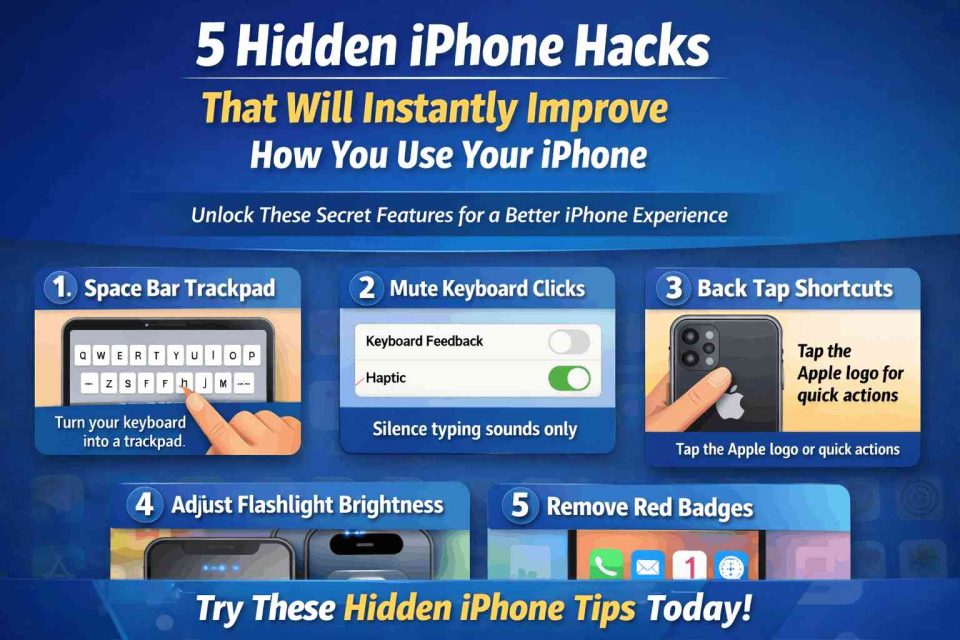
Key Takeaways (Quick Summary)
- Precision typing: Turn the keyboard into a trackpad using the space bar
- No more typing noise: Mute keyboard clicks while keeping haptic feedback
- Secret shortcut button: Use the Apple logo for quick actions with Back Tap
- Better flashlight control: Adjust flashlight brightness in seconds
- Cleaner Home Screen: Remove stressful red badge notifications app-by-app
1. Turn the Keyboard Into a Trackpad (Space Bar Trick)
Trying to place the text cursor exactly where you want can feel impossible—especially when editing long messages or fixing typos.
Here’s the hidden trick:
✅ Press and hold the space bar
✅ The keyboard turns into a trackpad
✅ Slide your finger to move the cursor precisely
Example:
Editing an email or correcting a mistake in the middle of a sentence becomes much easier than tapping randomly on the screen.
2. Silence Keyboard Clicks Without Muting Your Phone
Keyboard clicks can get annoying fast—especially in quiet places like an office, classroom, or late at night. The good news is you don’t need to silence your entire iPhone.
How to turn off keyboard sounds:
Go to:
Settings → Sounds & Haptics → Keyboard Feedback
- Toggle Sound: OFF
- Keep Haptic: ON (optional but recommended)
This way, you still get a satisfying typing feel—without the constant click-click noise.
3. Use the Apple Logo as a Hidden Shortcut Button
Yes, your iPhone has a built-in “secret button.”
With Back Tap, you can assign actions to a double tap or triple tap on the back of your phone (right on the Apple logo area).
Enable Back Tap:
Go to:
Settings → Accessibility → Touch → Back Tap
Pick one:
- Double Tap
- Triple Tap
Then assign an action like:
✅ Screenshot
✅ Open Camera
✅ Turn on Flashlight
✅ Open Control Centre
✅ Start Siri or Shortcuts
Pro tip: Back Tap is one of the fastest ways to trigger actions without touching your screen.
4. Adjust Flashlight Brightness Anytime
Most users treat iPhone flashlight like it only has two settings: on or off. But you can actually control the brightness level.
Here’s how:
- Open Control Centre
- Press and hold the flashlight icon
- Use the slider to adjust brightness
When it’s useful:
- Low brightness for reading at night
- High brightness for walking outside or finding items in the dark
It’s a small feature that makes a big difference.
5. Remove Red Notification Badges (Declutter Instantly)
Those little red numbers on app icons can be stressful. They make your Home Screen feel messy—and constantly remind you that something is “pending.”
Luckily, you can turn them off per app.
Remove badges:
Go to:
Settings → Notifications → Select App → Badges → OFF
Do this for apps that don’t need urgency (like shopping apps, games, or social media), and your screen instantly looks cleaner and calmer.
Final Thoughts
Your iPhone is packed with useful features that Apple rarely advertises—but once you discover them, they feel like upgrades you should’ve been using all along.
From smoother typing to cleaner notifications and faster shortcuts, these hidden iPhone hacks can improve your daily experience in just a few minutes.
✅ Try them today—and you’ll notice the difference immediately.
